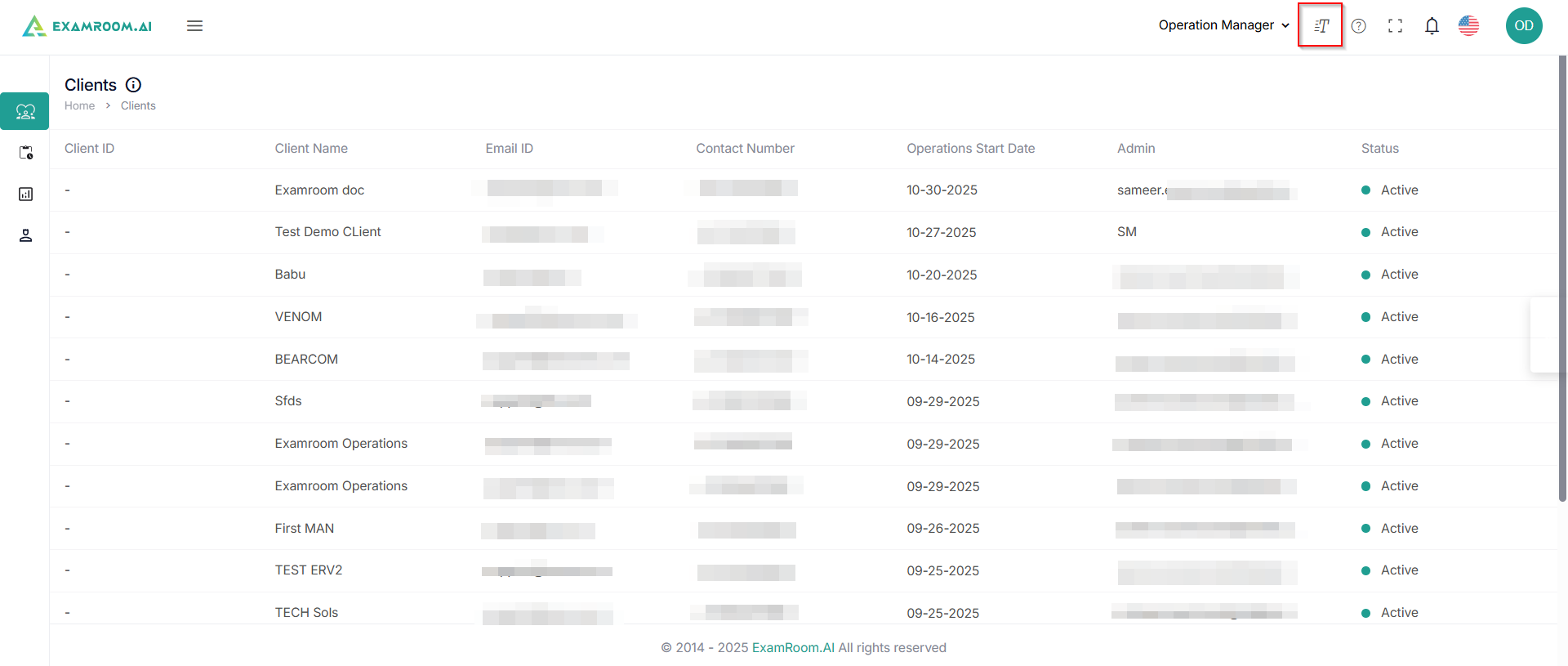
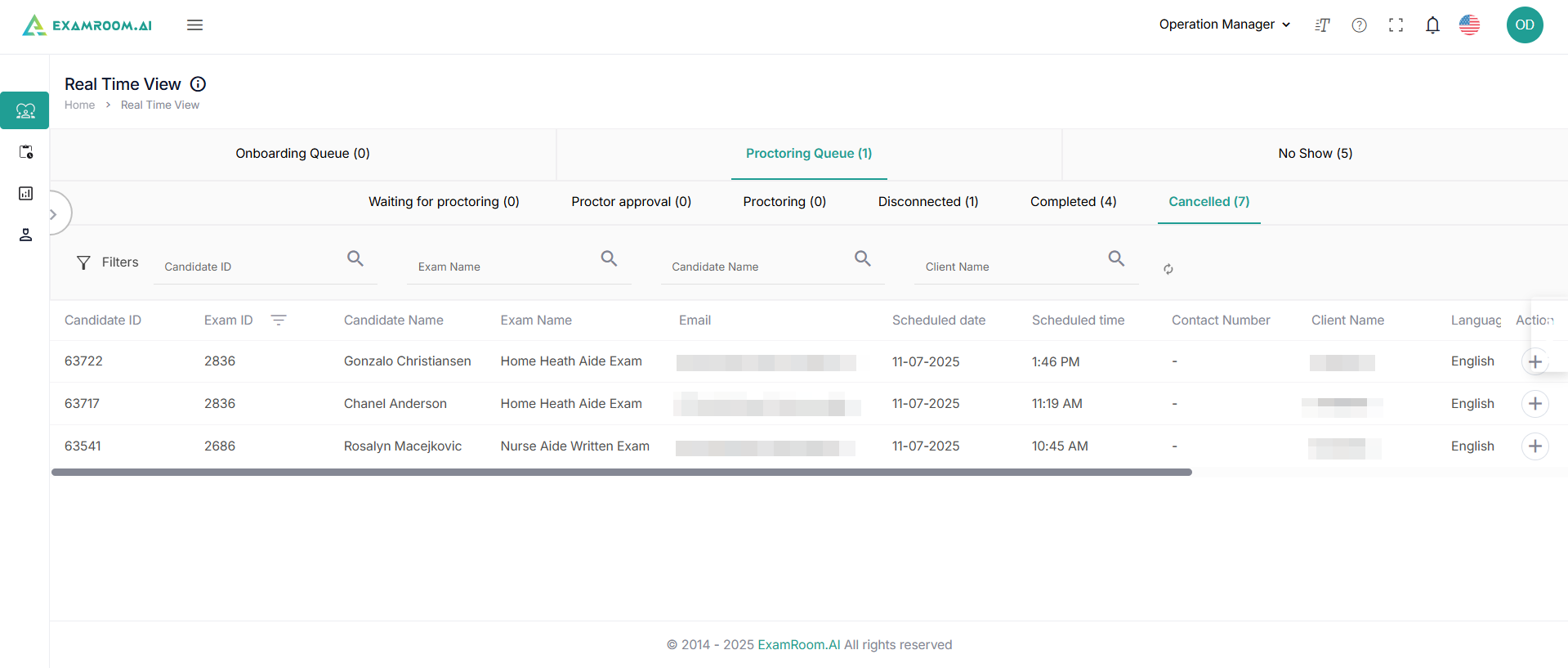
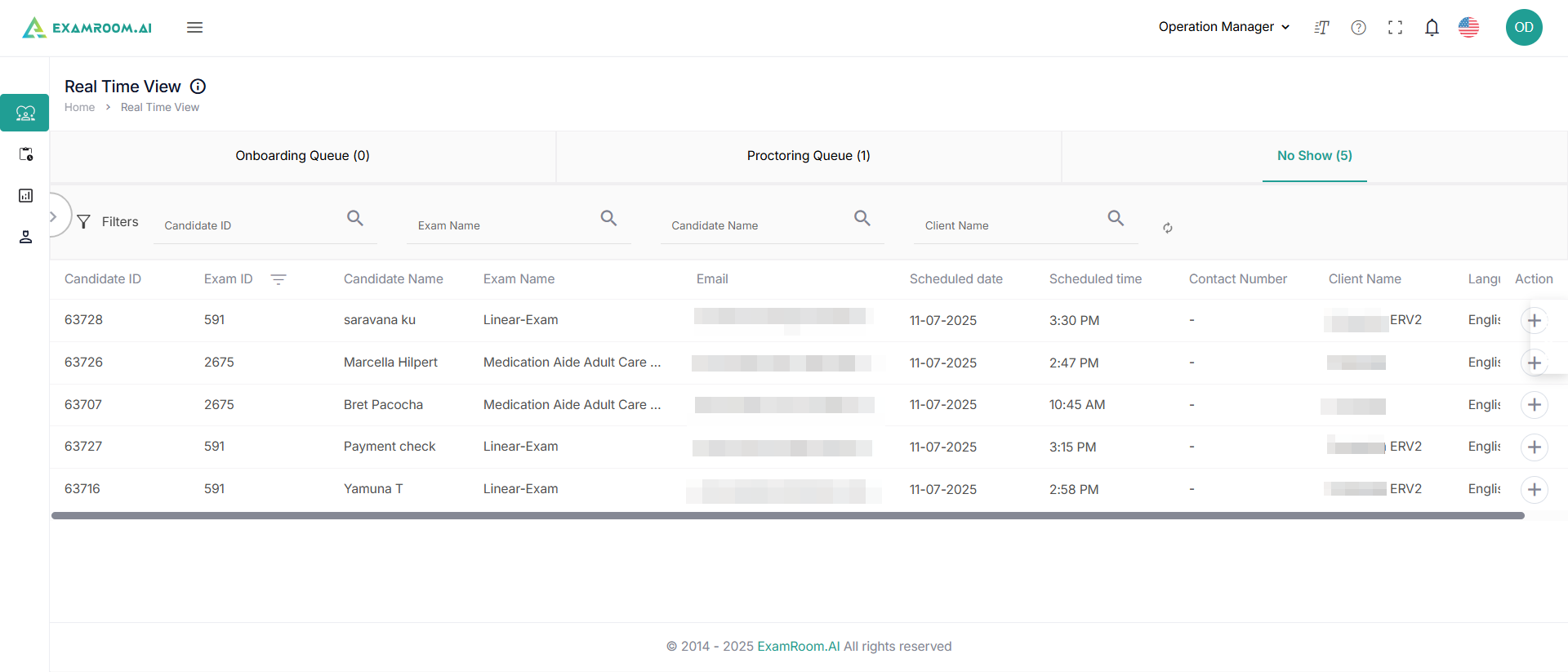
Click +RealTimeView to see the candidate's waiting queue for onboarding and proctoring.
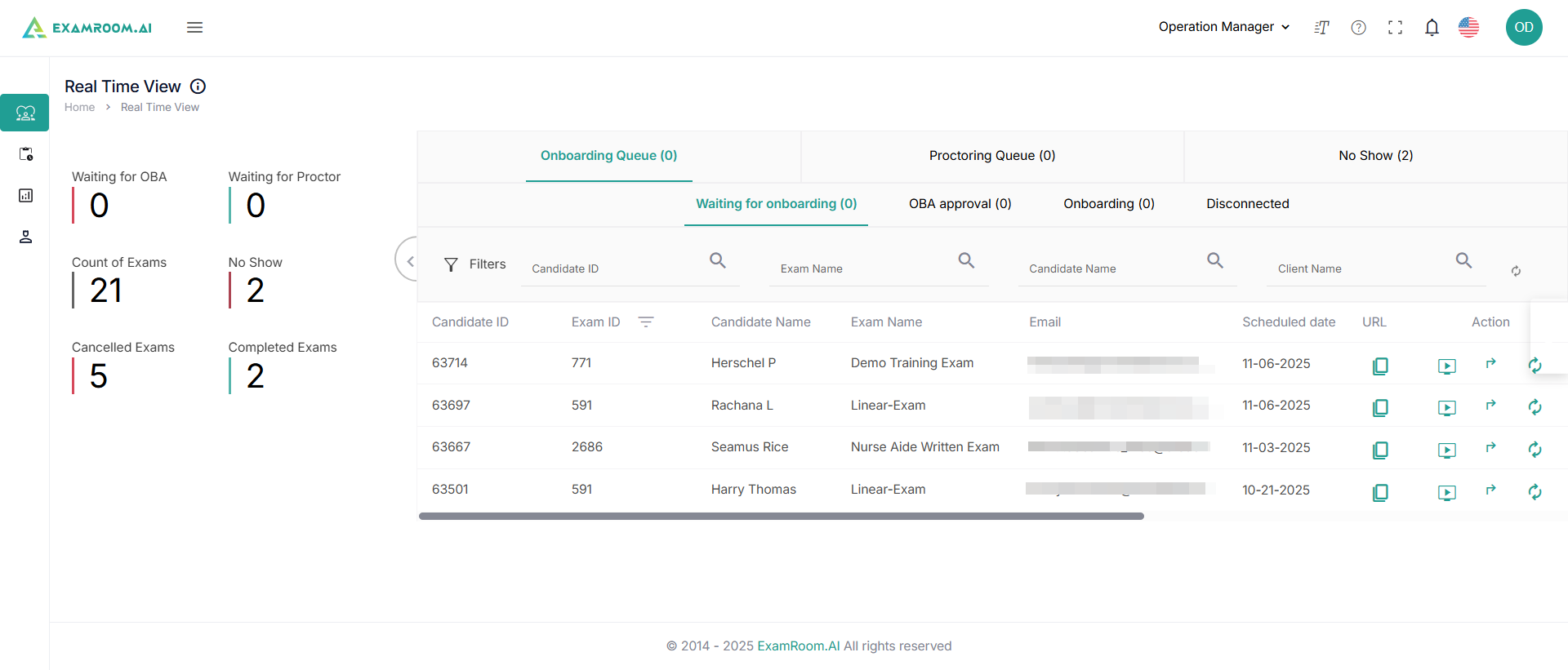
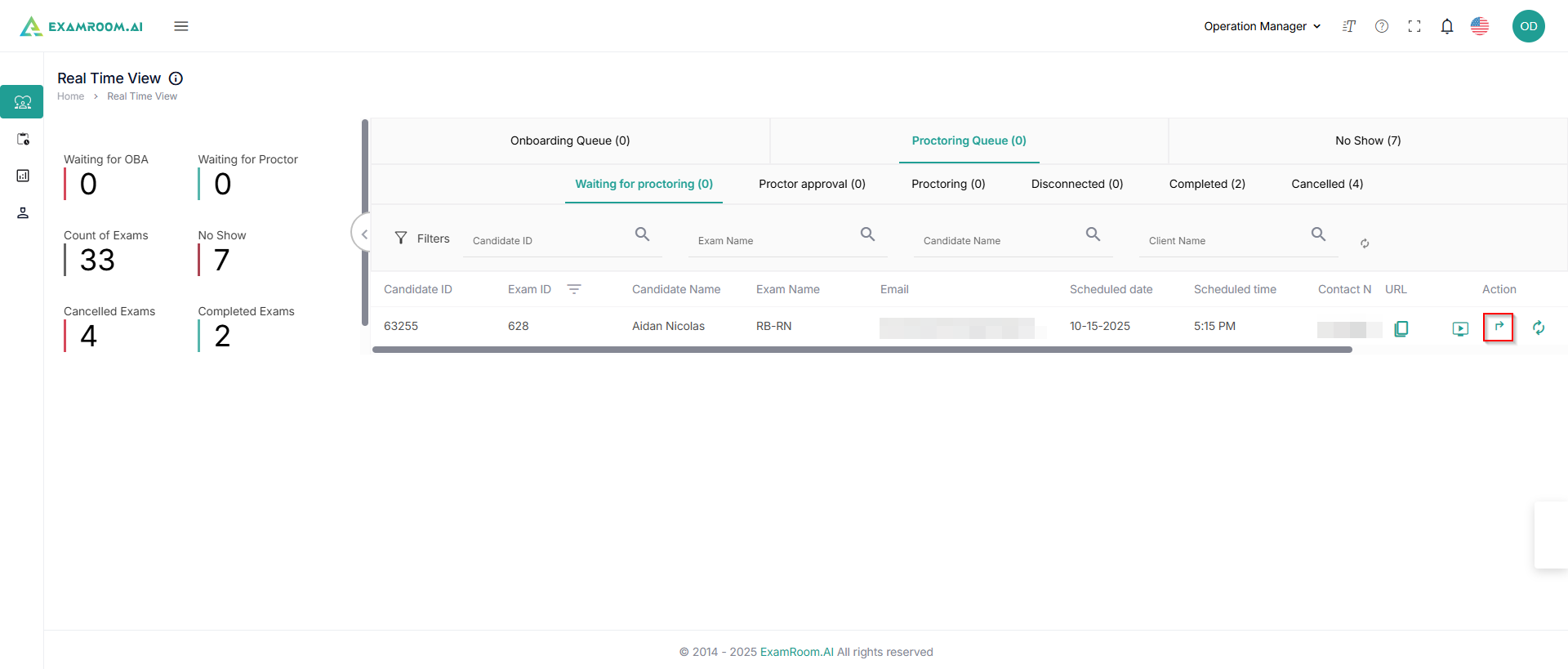
The screen's left side has the candidates' count in real time. The right side of the screen shows two queue types: Onboarding and Proctoring, along with a list of No Shows. The Onboarding Queue displays a list of candidates who are scheduled to go through the onboarding process. It is divided into the following four sections:
WaitingforOnboarding – Candidates who are waiting for an onboarding agent to connect with them.
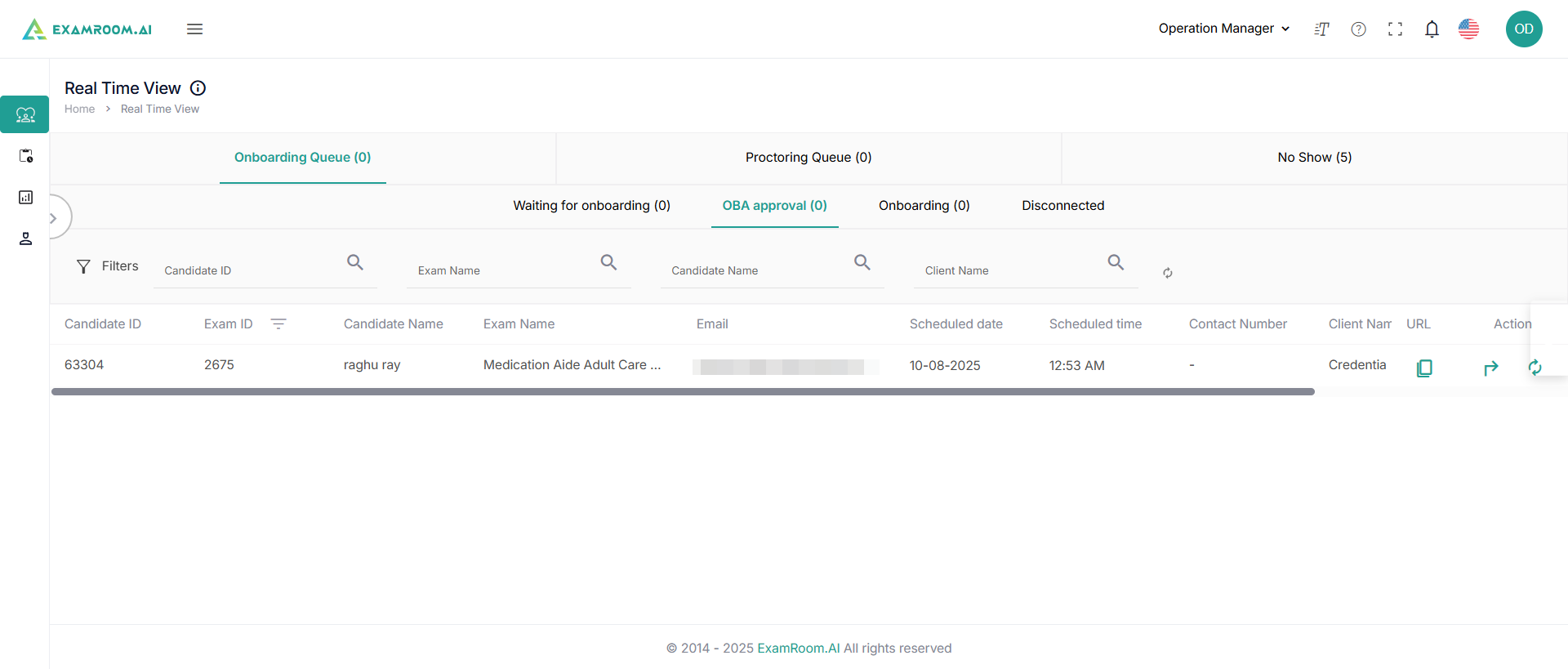
OBAApproval – Candidates who have been assigned to an onboarding agent, but the onboarding process has not yet started.
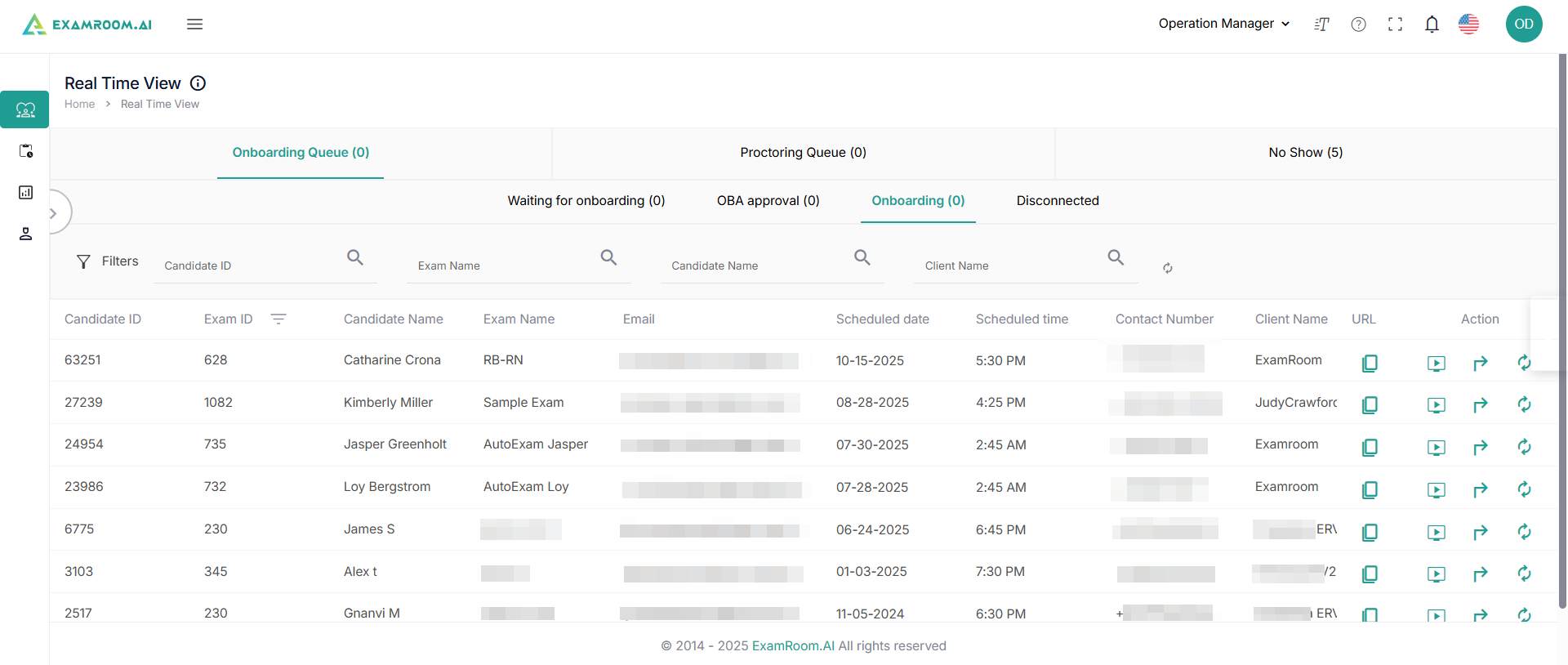
Onboarding – Candidates who are currently undergoing the onboarding process with an agent.
Disconnected – Candidates who got disconnected during the onboarding process. Ideally, their exams should automatically reset to "Scheduled" status. This section is provided as a fallback in case the auto-reset does not occur as expected.
Filters are available to search for a particular candidate from the list by candidate ID, Exam Name, Candidate Name, and Client Name.
The candidate information is the same and is explained below:
CandidateID: Unique ID of the candidate
ExamID: Unique ID of the exam
CandidateName: Name of the candidate
ExamName: Name of the exam
Email: Email address of the candidate
ScheduledDate: Scheduled date of exam
ScheduledTime: Scheduled time of exam
Duration: Duration of the exam
ContactNumber: Contact number of the candidate
ClientName: Name of the client
Language: Candidate’s preferred language for taking the exam
Location: Location of the exam
WaitingTime: Time since the candidate has been waiting to get connected to the agent (Only available for Onboarding/Proctoring Waiting queues)
URL: Click to copy the session monitoring link, then paste it into your browser to monitor the session.
Action: Actions available to you for the candidate.
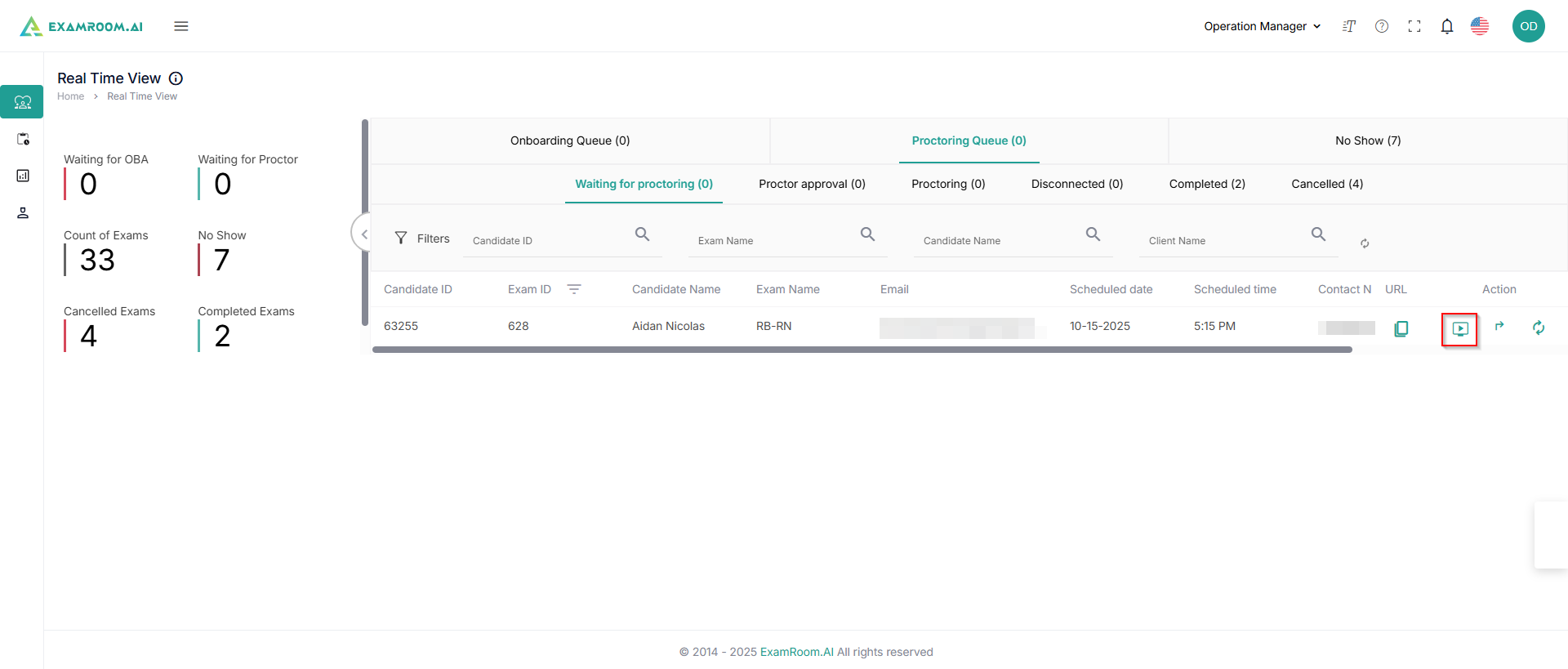
LiveFeed: click to view their exam session live; this will not interrupt their testing.
Transfer: Click to transfer the candidate (explained ahead)
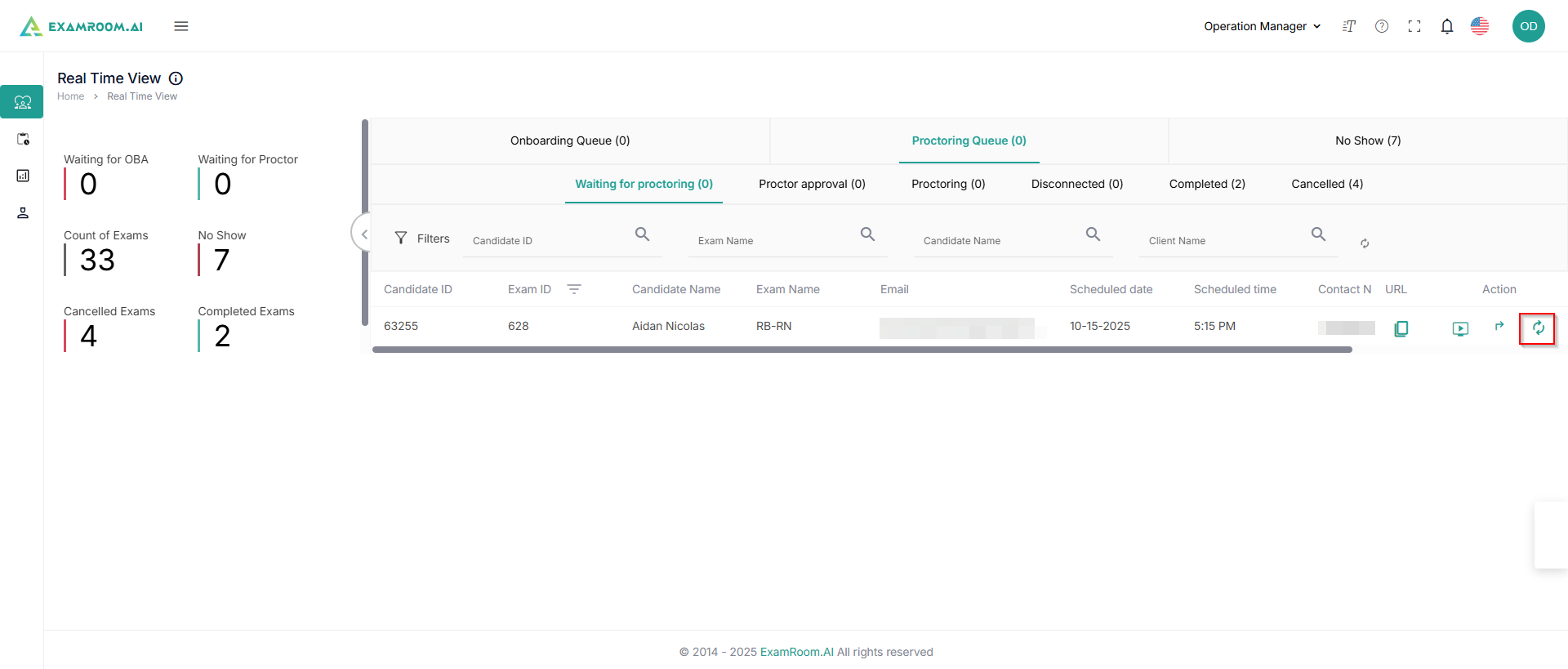
Reset: Click to reschedule the exam for the current date and time.
Transfer a candidate to OBA
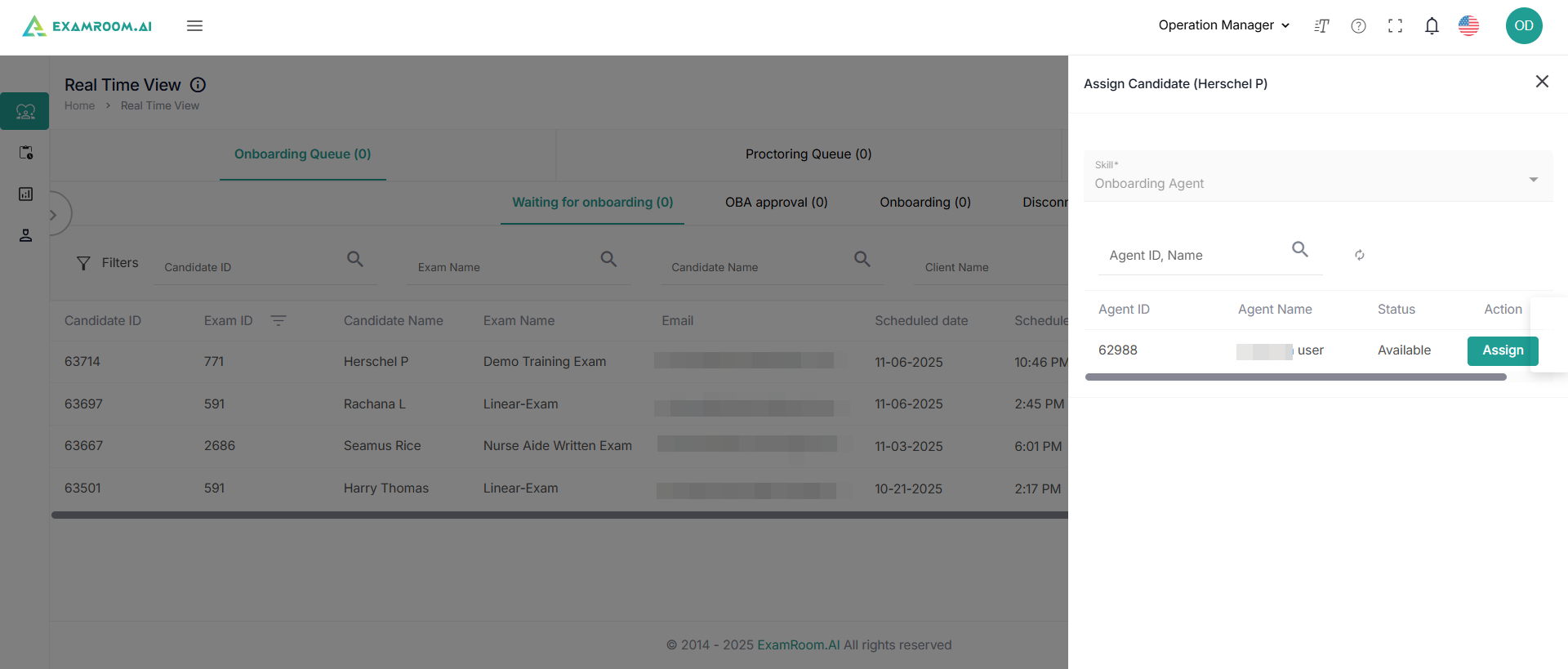
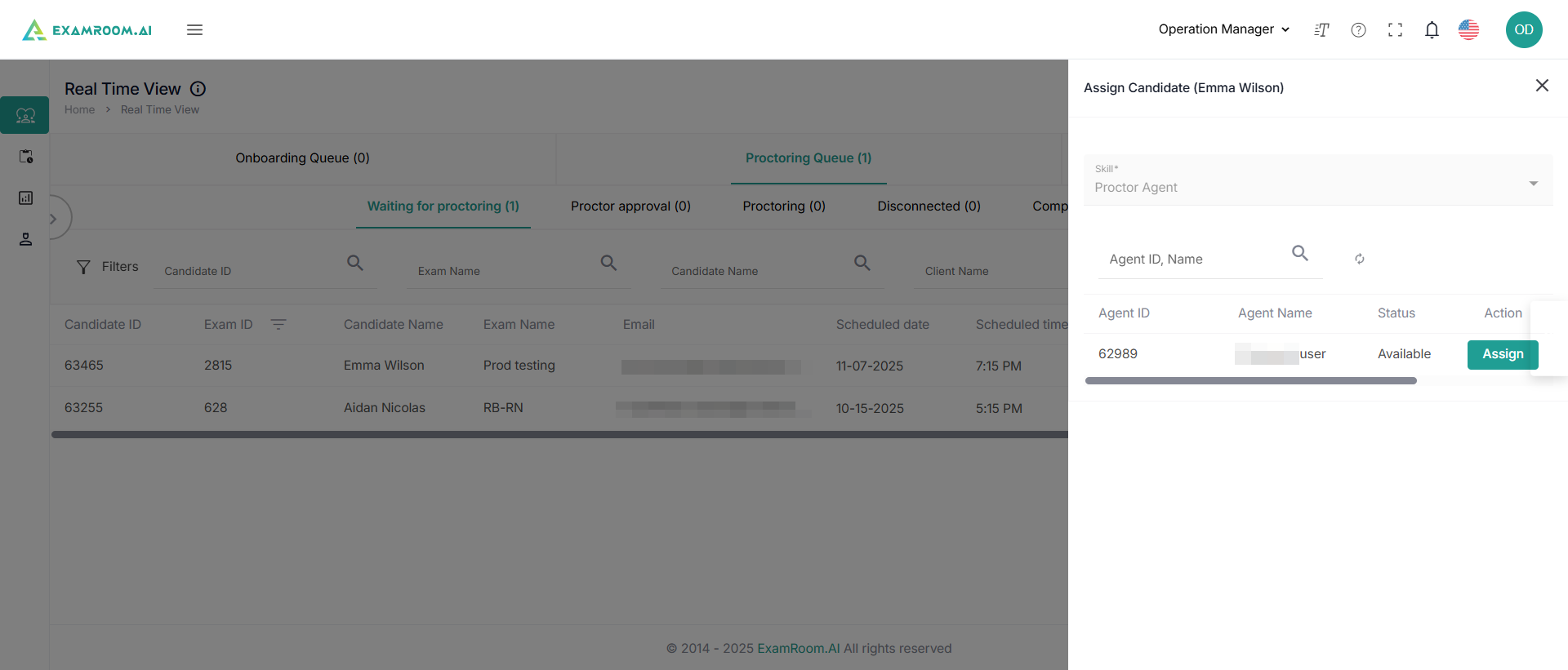
In the real-time view section, click the action icon, and a sidebar appears on the right side of the screen, displaying the details of the available agents at that moment.
Click Assign under the action column to assign the candidate to the respective OBA.
As the candidate gets assigned to an OBA, the candidate’s profile moves to the OBA approval section.
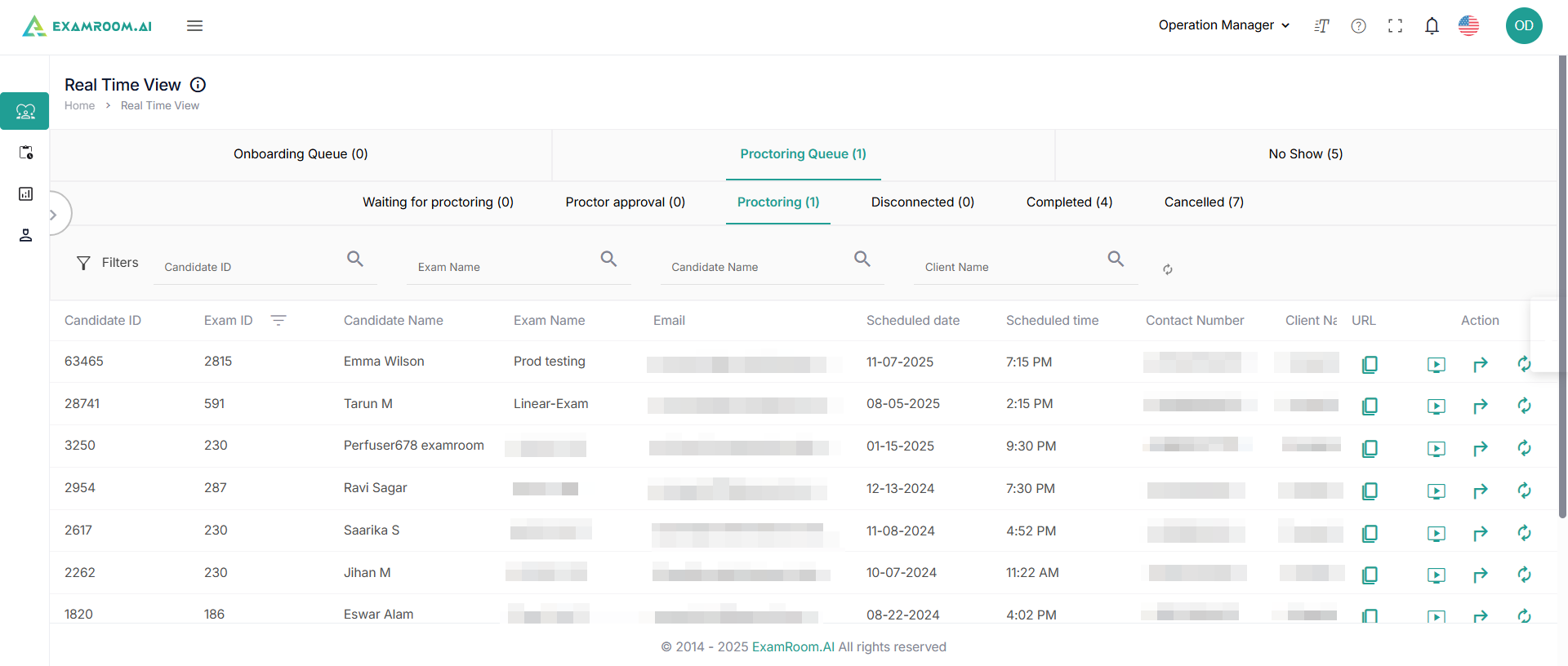
Click the action icon. Now, the candidate moves to the approval tab. When the OBA accepts the request, the candidate moves to the onboarding tab, where it remains until their onboarding process is completed.
Candidates who got disconnected during the onboarding process are listed in the disconnected section.
Transfer a candidate to Proctor
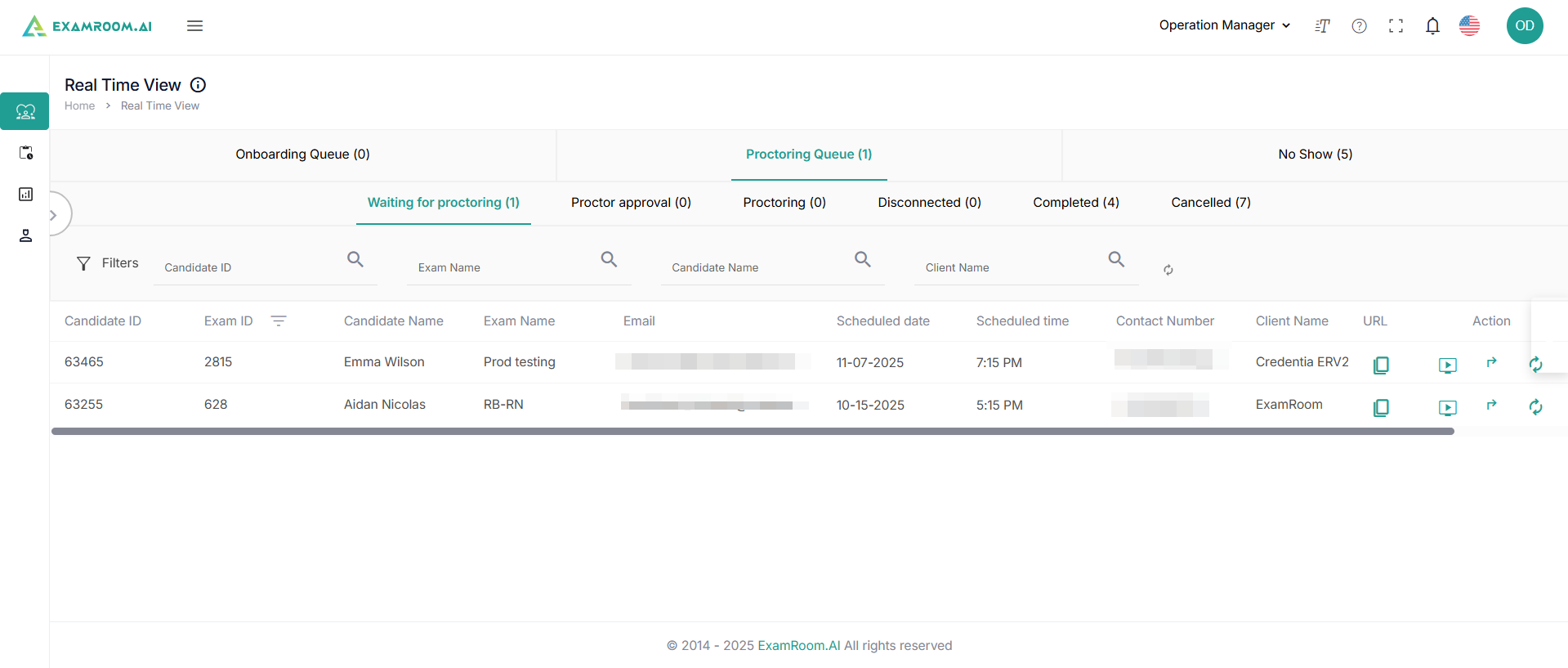
After the candidate completes onboarding, they are placed in the proctoring queue.
Click the Assign icon to transfer the candidate to an available proctor.
Now, a sidebar appears on the right side of the screen, displaying the details of the available proctors at that moment. Click Assign under the action column to assign the candidate to the respective proctor.
As the candidate gets assigned to a proctor, the candidate's profile moves to the proctor’s approval section.
Click the action icon. Now, the candidate moves to the approval tab. When the proctor accepts the request, the candidate moves to the proctoring tab, where it remains until their proctoring process is completed.
Candidates who got disconnected during the proctoring process are listed in the disconnected section.
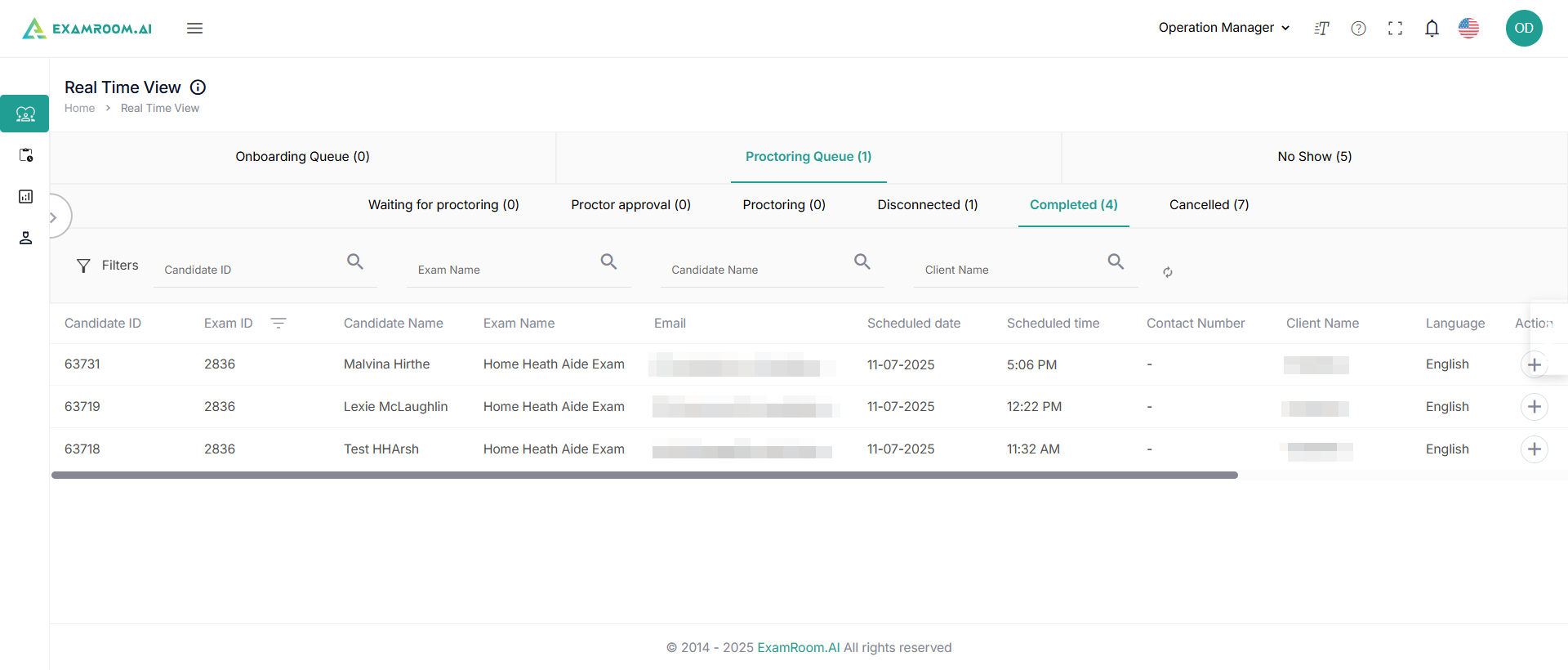
Candidates who complete their exam successfully are listed in the completed section.
Candidates whose exam was canceled are listed in the canceled section.
Candidates who did not show up for their exam are listed in the No Show section.