Forgot Password
If you have forgotten your password, you can reset it anytime from the login page.
To reset your password, follow the steps below:
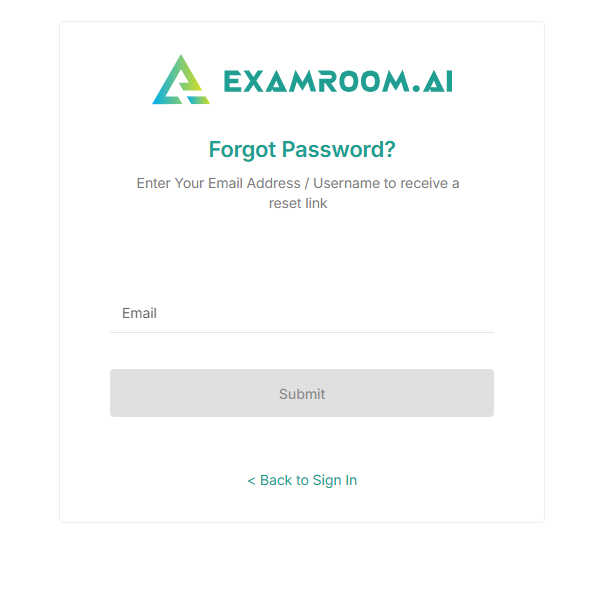
- From the login page, click Forgot Password.
- Enter your registered email address in the Email field.
- Click Submit to receive the password reset link; otherwise, click Back to Sign In to return to the login page without changing your password.
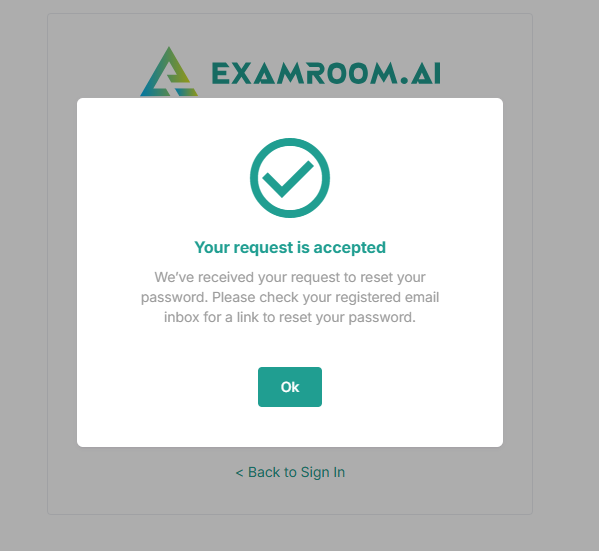
- A dialogue box appears after submitting the reset password request, confirming that the request has been accepted.
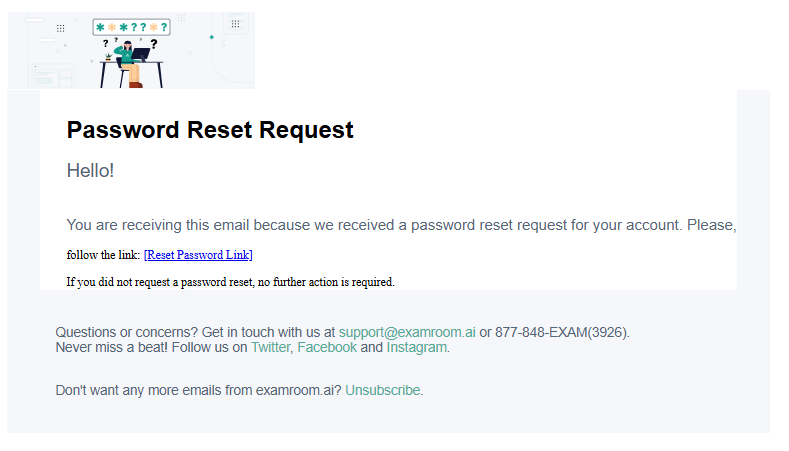
- After the successful submission of the reset password request, a link to reset the password is sent to the registered email address. Click the Reset Password Link to reset your password.
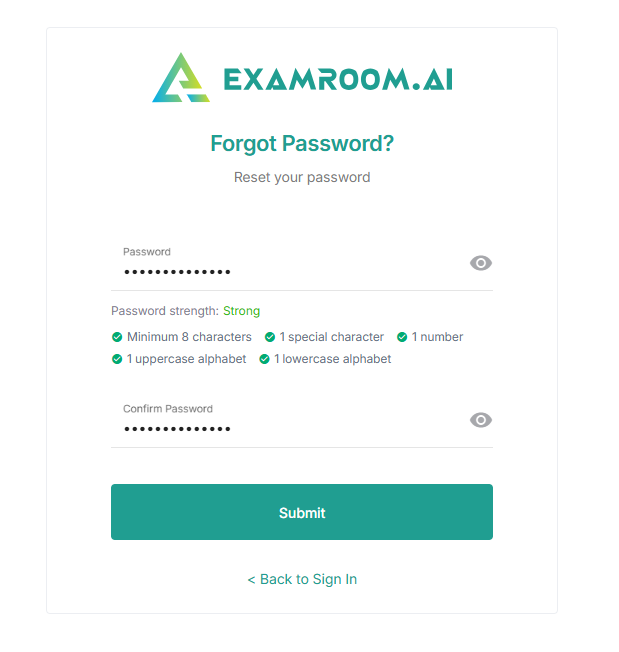
- Enter the new Password and Confirm the Password in the respective fields.
Note: The required characteristics of the password:- The password must be a minimum of eight (8) characters
- Must contain a special character
- Must contain one (1) number
- one (1) uppercase alphabet
- one (1) lowercase alphabet
- Click Submit to reset your password; otherwise, click Back to Sign In to exit without changing your password.
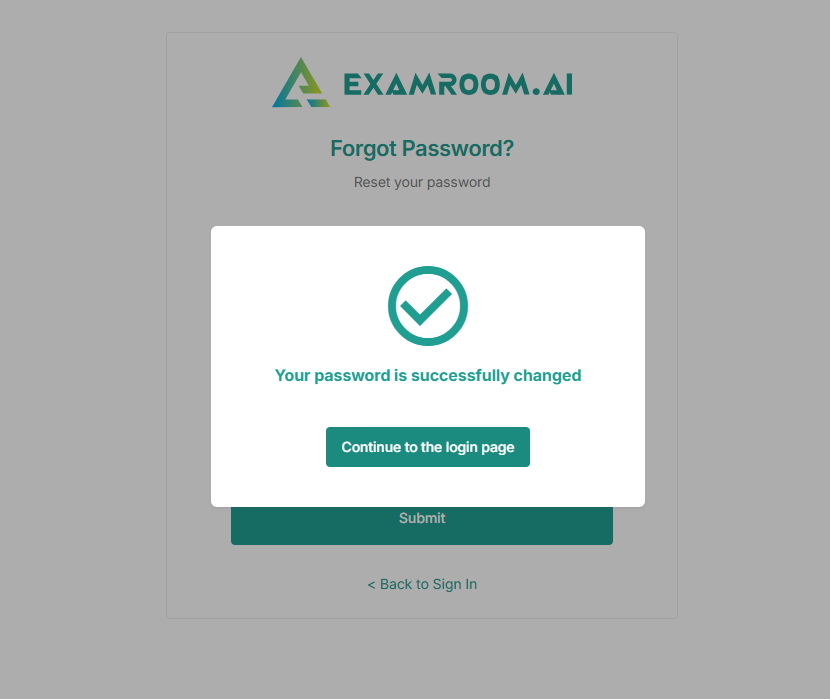
- A dialogue box appears confirming that your password has been successfully changed. Click Continue to the login page and log in using your new password.